
Library Laptop Lending

Check Out a Laptop from a Kiosk!


MSMU Students
Students can borrow laptops for 1 day, 3 days, or 7 days from the self-serve kiosks located on the 2nd floor of the Charles Willard Coe Memorial Library (Chalon) and on the 1st floor of the Thomas J. McCarthy Library (Doheny).

Authenticate with your MSMU email and password and follow the directions on the screen. Laptop cases and power cords are available from the circulation desk.

Laptops, cases, and power cords can only be borrowed by current MSMU students.

Are you a student in need of a longer-term solution?
A limited number of laptops and hotspots are available for semester-long loans.
Email studentcare@msmu.edu for more information.
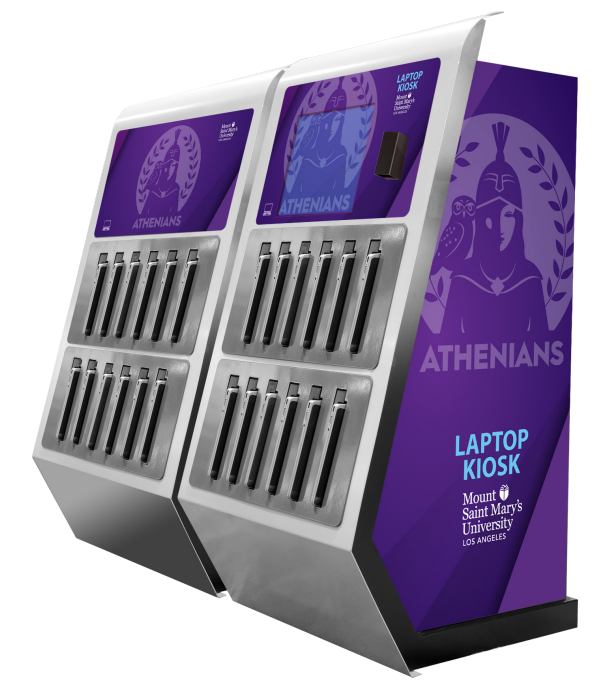
Laptop Kiosks


MSMU's technology loan program is supported by the U.S. Department of Commerce/National Telecommunications Information Administration's Connecting Minority Communities Pilot Program.

Laptops, Cases, & Power Cords

Chalon Campus - Coe Library

Laptop Kiosks

Location
2nd Floor  - Across from the Media Center

Laptops Available
24 Dell Laptops

Laptop Cases & Power Cords

Locations
2nd Floor - Media Center Help Desk

3nd Floor - Circulation Desk

Cases and Power Cords Available
24 cases and power cords 

Doheny Campus - McCarthy Library

Laptop Kiosks

Location
1st Floor - Near the elevator

Laptops available
24 Dell Laptops

Laptop Cases & Power Cords

Location
1st Floor - Circulation Desk

Cases and Power Cords Available
24 cases and power cords 


How to Check Out a Laptop

Self-Check out Kiosk Locations

Chalon Campus - Coe Library - across from the Media Center (2nd Floor)
Doheny Campus - McCarthy Library - near the elevator (1st Floor)

From the Kiosk Touch Screen

  1. Choose your check out length (1 day, 3 days, or 7 days).
  2. Log in with your myMSMU email login with the @msmu.edu.
  3. Click to "Agree to Terms".
  4. Take your laptop from the kiosk when it's ready. 
  5. Log into MSMU Wireless first using your full email address.
  6. Log into the laptop with your full email address and password.
  7. Then authenticate your MSMU account with your mobile phone.
  8. Make sure to check out a laptop case and power cord from the circulation desk (the life of the battery will be 4 hours or less.)
  9. Return the laptop to the kiosk when it is due. Carefully insert the laptop into any open slot and wait for confirmation on the screen.

How to Check Out a Case & Power Cord

Case & Power Cord Checkout Locations
Chalon Campus - Coe Library

  • Chalon Media Center (2nd Floor)
  • Circulation Desk (3rd/Main Floor)

Doheny Campus - McCarthy Library

  • Circulation Desk (1st Floor)

Instructions

  1. Ask the circulation desk or media center assistant for a laptop case and power cord (they may ask to see the laptop.)
  2. Give them your student ID or tell them your name to check out.
  3. They will check out a laptop case and power cord to you for the same length of time.
  4. Return the case and power cord when you turn your laptop back in to the kiosk.